
Void an AP Check
Follow the steps below to void a printed AP check. The system will not allow you to void a check that has been cleared on a bank reconcilitation.
Voucher Entry
 NAVIGATION: ACTIVITIES menu > Voucher Entry
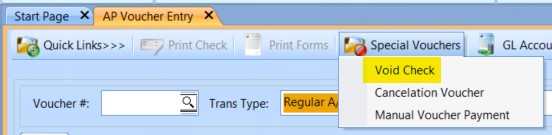
- Go to Quick Links menu > Special Vouchers > Void Check
- The Void Check Selection Grid will open
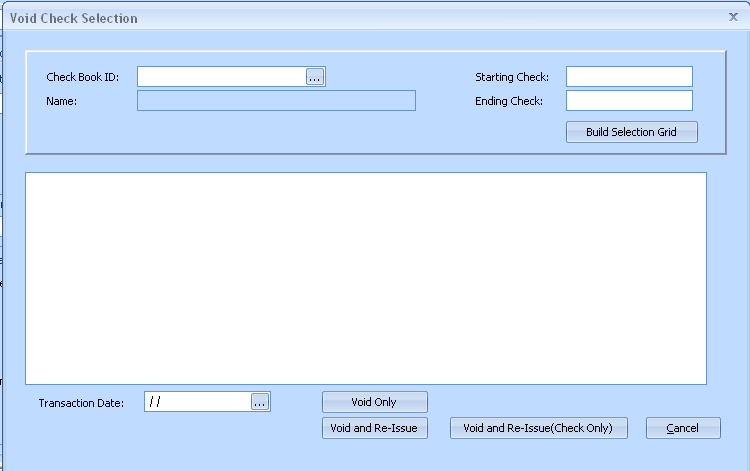
- Check Book ID: enter or select the checkbook the check was written from
- Enter the check number in both the Starting and Ending Check fields.
- If you do not have the exact number or have several checks to void, enter a range of check numbers in the Starting and Ending Check fields.
- Click BUILD SELECTION GRID
- Once the grid populates, place a check in the box next to the check or check(s) you need to void.
- Enter the transaction date (at the bottom of the grid.)
- This is the date the voided check will be added back to the checkbook balance and to the General Ledger.
- It is very important to have a transaction date in this field.
 Horizon recommends that you do not use a date earlier than Bank Reconciliations have been completed for.
- Select one of the three void options:
- VOID ONLY
- Use this option to void the check.
- This will create a negative voucher that, when posted, will void the check and reverse the General Ledger entries from the original voucher and check processing.
- Do not alter the created voucher, it needs to post as is.
- VOID AND RE-ISSUE
- Use this option if a new check will be needed.
- Using Void and Re-Issue will create two vouchers. A negative voucher for the void which should not be altered, it needs to post as is. The second is a positive voucher for the reissue. This voucher you may alter and correct any incorrect information.
- For example: change vendors, dates, amount, general ledger numbers and even the pay group. After posting you may print the check through the normal check processes.
- VOID AND RE-ISSUE (CHECK ONLY) To be used for Special Purposes Only
- Use this option if a new check is to be issued to the same vendor for the same amount with no changes to the expenses that were already posted.
- Using this method will not reverse expenses. The Distribution accounts are all to the AP account so net effect to GL is a debit to cash and a credit to AP with Open payables waiting to cut checks.
- The new checks printed will not show check stub invoice information like the original checks. Check stubs will only show “Void (Check Only)”
- This option would be used, for example, in the case of a lost or damaged check.
- This method will create two vouchers. Do not alter or edit either of the two vouchers, they must post as created to process correctly. The first voucher is a negative for the void and the second is a positive for the reissue.
- After posting you may print the check through the normal check process.
- NOTE: Checks being reissued that were originally entered as Non Accounts Payable, will have the reissue (positive) voucher created as a Regular A/P. You may change these to Non Accounts Payable and a new Check # and Check Date entered. This is the only change that should be made to Void and Re-Issue (Check Only) vouchers.
- VOID ONLY
- Regardless of your selection, you will be taken back to the AP Voucher Entry screen
- Review and edit vouchers as needed. Refer to the instructions (above) about what changes may be made.
- Address changes
- For regular vendors: Change the address in the Vendor Master. Checks will always print the address saved in the Vendor Master regardless of what address was saved at the time of voucher entry.
- For *MISC , *TEN or other * vendors, you may make corrections in the voucher for the mailing address if it is different from the original check. These miscellaneous vendors will always print the address saved in the voucher.
- Close the voucher entry screen
- Follow the regular process to review the edit list and post the vouchers.
- Voiding cleared checks will not be allowed.
- If a check has been marked as cleared, an AP voucher to void the check will not post. Posting error on voucher # "Check Cleared in Bank Rec - Cannot Void".
- Open "view Checkbook" select the checkbook, find the check# you are attempting to void.
- If there is a checkmark in the cleared 'X box' and/or has a cleared date, or the check is marked as Void, you will not be able to post the void.
- If the check is not marked as cleared or voided, then open your current in process bank reconciliation. Find that check#, it is checkmarked as cleared in this month, please determine if it is cleared in your bank statement or not. If it is on the bank statement you should not void it. If it is not on the statement, un-select it as cleared. If the check cleared the bank, delete the voucher.
See Enter a Vendor Invoice (AP Voucher)
12/2023